- Guides
How to personalise your Android TV with AI: the full setup guide and prompt
The complete Android TV launcher guide from my video: copyable AI prompt, debugging setup, Pixpaq instructions, compatibility, backups and troubleshooting.
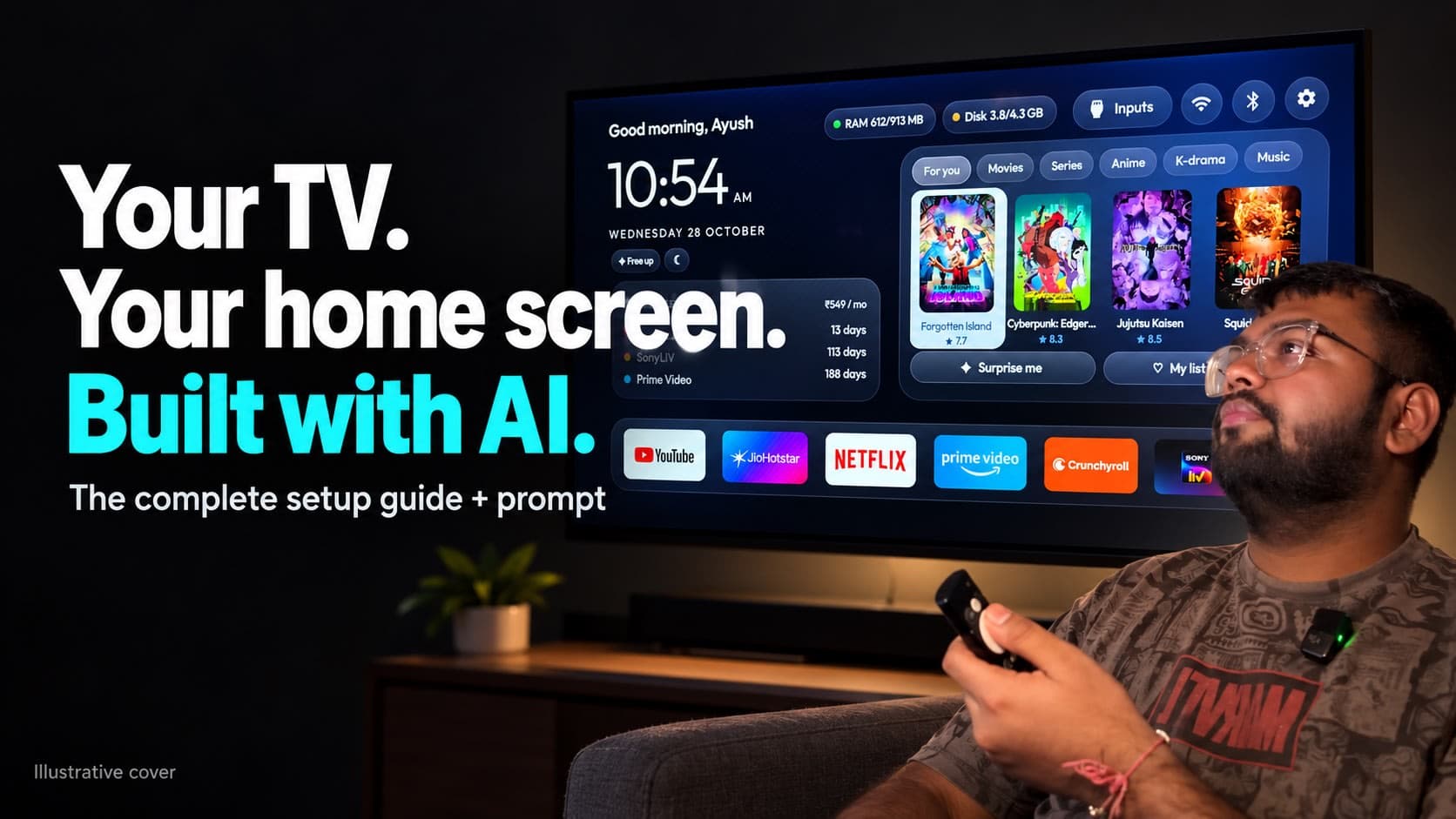
You turn on the TV to open one app. Somehow, getting there involves scrolling past recommendations, banners and rows you never asked for. I wanted a home screen that felt a little more like mine: the apps I use, in the order I want, with a clock I can actually read from the sofa.
If you came from my video and commented "PROMPT", you are in the right place. The full prompt is below, but I have also written out the setup around it. Copying a prompt is easy. Finding the right Android settings on a projector can be the part that holds you up.
We will use cleanyourtv, an open-source project by Gathin23, as the starting point. Credit for the original project belongs to its creator and contributors. This guide explains how to ask an AI assistant to inspect your device, customise the launcher and test it without blindly removing the software that came with your TV.
Watch the video
Watch my Android TV customisation video, then follow the setup and copy the prompt below. Open the video on YouTube.
You do not need to understand every command. You do need a computer, your remote and some patience when your device does something different from the guide.
What are we actually changing?
A launcher is the app that displays your home screen. It decides where your app shortcuts sit and what you see when you return Home. Think about the result you want before adding features: perhaps five streaming apps along the bottom, a calm background, a greeting and a large clock.
There are two different jobs here. One is configuring the features that already exist. The other is developing new ones. Moving an app in the dock is a much smaller request than building a weather panel or a personalised movie browser.
My custom setup should not be treated as a ready-made download of every feature shown or discussed. The public project is the base. The assistant needs to inspect the version it downloads and tell you what is already there, what can be configured, and what needs more code.
I would get the basic Home working first. A screen full of unfinished widgets is less useful than a simple dock that opens the right apps every time.
Will this work on your TV?
Check the operating system, not just the brand on the box. A manufacturer can sell several devices with completely different software.
| Your device | Where to start |
|---|---|
| Android TV or Google TV | A candidate for the Android launcher. Check Android version and model-specific restrictions. |
| Projector with built-in Android | Check the actual firmware. Manufacturer settings and remote behaviour may differ. |
| Fire TV running Fire OS | Check the exact model and firmware; Android app support does not guarantee replacement Home support. |
| Fire TV Stick 4K Select running Vega OS | This Android launcher APK is not compatible. A separate Vega app would be a different project. |
| Samsung Tizen, LG webOS, Roku or another non-Android platform | This Android installation workflow does not apply. |
The launcher documentation currently sets Android 8.0 as its minimum. It describes configurable dock order, app columns, themes and a Clock screensaver. Check the current launcher documentation before starting; a supported Android version alone does not prove that a particular firmware will let it become Home.
Amazon makes a distinction worth checking: Fire OS is based on Android, while the Fire TV Stick 4K Select uses Vega OS. Similar names on the packaging can lead to very different installation options. Amazon explains the two operating systems here.
Using a Fire Stick in a projector?
The projector and the stick are separate computers. Your projector runs its own Android interface; the Fire Stick sends its interface over HDMI. Changing the projector launcher affects its built-in Android screen. It will not redesign the Fire Stick Home you see after switching to that HDMI input.
That distinction matters before you spend an evening customising a screen you rarely use. Decide which device you actually want to see when you sit down to watch.
Get these details ready
- The exact model name from the device label or About screen, plus its Android/software version if you can find it.
- A computer that your assistant is allowed to use for this project, with enough space for Android build tools.
- Your TV/projector and computer connected to the same home network. Avoid a guest network for this setup.
- Your remote. You will still need to accept prompts and test its physical buttons.
- Your dock apps in the order you want them. For example: YouTube, JioHotstar, Netflix, Prime Video, Crunchyroll.
- An approximate area and city if you want weather. A full address is unnecessary.
- A screenshot or short description of the layout you like. Explain which parts matter: text size, spacing, colours or the dock.
Use an AI assistant with access to a project folder and the ability to run local commands. A chat-only assistant can explain what to do, but someone still needs to execute the commands on your computer. Check the permissions of the tool you use before giving it access.
I would keep this in its own project folder. There is no reason for a TV experiment to touch your work repository, personal documents or account credentials.
Step 1: find the device IP address
The IP address tells your computer which device to contact on your home network. It often looks like 192.168.1.50. That is an example, not an address you should copy.
Open the TV or projector Settings and look under Network, Wi-Fi or the connected network details. Some devices put it in About → Status instead. Write down the address shown on your own device.
If your menu looks different, send the assistant a photo of that menu. Crop out unrelated account information. A network list on the computer can help narrow things down, but it is not reliable proof of which address belongs to your projector.
Check again if you return to the setup another day. The address can change. Tell the assistant when a device has moved to another Wi-Fi network rather than letting it keep trying yesterday’s address.
Step 2: enable debugging through the normal settings
ADB stands for Android Debug Bridge. It gives an authorised computer a way to communicate with Android, inspect the device and install an app. You do not need root for the normal setup described here.
On many Android devices, Developer options appears after you select Build number seven times. On a TV, look around Settings → System or Device Preferences → About for Build, Build number or Android TV OS build. The location and wording vary. Google documents the general process.
Once Developer options is available, look for the debugging controls. Your device may expose USB debugging, ADB debugging, Network debugging or Wireless debugging. Their names do not tell the whole story; follow the connection method supported by that firmware.
For code-based Wireless debugging, keep its pairing screen open while the assistant connects. Send the displayed pairing address/port and the temporary code through your private assistant session. The connection address/port may be different. Do not put a pairing code in a public comment. Google’s wireless ADB instructions explain pairing.
When an authorisation prompt appears on the TV, check that it is for the computer you are using, then accept it. If all you can find is USB debugging, tell the assistant exactly that. It should check the model guide rather than assume that toggling it opens Wi-Fi access.
The Pixpaq menu that can send you in circles
The Pixpaq Gold Ray-Mastered guide documents a unit where the ordinary Settings entry opens Joyar’s manufacturer interface. Android TV Settings was installed separately. The recorded way into Developer options was through Activity Launcher:
- Install Activity Launcher from a trusted source. The guide records installation from an APK copied on a USB drive.
- Open Activity Launcher, select All and search for DevelopmentActivity.
- Expand Settings belonging to com.android.tv.settings.
- Select com.android.tv.settings.system.development.DevelopmentActivity and launch it.
- Look under Debugging for the available controls, enabling the Developer options master switch if needed.
For the regular Android Settings page, the same guide identifies com.android.tv.settings.MainSettings. These are Android settings activities, not an invitation to open factory menus. The observations come from one firmware; the guide does not prove that every Pixpaq behaves identically.
Step 3: inspect and back up before installing
Before the assistant builds anything, ask it to give you a small device report: model, Android version, available RAM, screen size and display density. These tell it what it is designing for.
Resolution and density both matter. Two devices can output the same number of pixels and still lay out Android controls differently. A panel that fits neatly on one TV may collide with the dock on another.
The backup should include the installed-package list, enabled/disabled package state, accessible settings and the exact app that currently handles Home. Save the screensaver selection too. Ask the assistant to name the backup folder and explain what it could not read.
This is a configuration record, not a complete image of the TV or a backup of every app’s private data. Keep that limitation clear. The point is to know what changed and how to restore the settings you are about to touch.
Have it write recovery instructions for your device before selecting a new default Home. “Run the restore command later” is not much help if nobody recorded which launcher was there in the first place.
Step 4: copy the complete setup prompt
Paste the entire block into your assistant. It is deliberately specific about backups and testing. You can leave optional features out of your reply if all you want is a cleaner dock.
Help me set up a personalised launcher on my Android TV or Android projector using https://github.com/Gathin23/cleanyourtv.

Work with me step by step. I am not technical. Explain each physical action clearly and wait when you need me to operate the remote.

Start by asking for my exact TV/projector model, whether I use built-in Android or an external streaming stick, my name, approximate area/city for weather, preferred dock apps in order, and the appearance/features I want. Do not ask for my full address.

Check compatibility first. Read the repository's current instructions, applicable agent instructions and the guide for my exact device. Do not assume all Fire TV models run Android or support replacement launchers. If unsupported, explain the limitation before attempting installation.

Inspect the public source and distinguish existing features from requested additions. My optional wish list is a greeting, clock/date, dock, weather, sunrise/sunset, matching screensaver, real movie/series metadata and subscription reminders. Do not promise these all exist in the public version. Explain additional development, API credentials or service limitations before implementing them.

Guide me to find the device IP address and enable debugging through normal Android settings. Use the exact model guide where available. If menus differ, ask for a photo. Do not enter factory menus. If wireless debugging shows pairing and connection ports, use those actual details rather than assuming port 5555.

Before making changes, connect over ADB, confirm model, Android version, RAM, resolution and display density. Back up the package list, accessible settings, default Home and screensaver configuration into a private folder. If a settings read is denied, use a supported read-only alternative and report the gap. Record device-specific recovery steps.

Adapt the layout to the measured screen and density. Keep text readable from the sofa, remote navigation clear and memory use suitable for this device. Configure my dock with apps actually installed. Missing apps must be reported, not silently replaced.

Follow the checked-out project's build requirements. Use JDK 17 and Android SDK platform 34 if those are still required by that revision. Run relevant tests and lint; report failures and warnings honestly. Preserve the signing key and existing app data. Install as an update when applicable; never uninstall to bypass a signature mismatch.

Launch the app for testing before changing default Home. Capture and inspect actual device screenshots of Home, app navigation and the screensaver preview. Fix clipping and overlaps. Ask me to test physical Home, Back, Input, Settings, volume and streaming buttons. A successful command alone is not proof the feature works.

For optional subscription reminders, use only service, price, billing period and renewal dates I explicitly confirm. Ask about ambiguous dates. Never infer billing details from installed apps or claim automatic account sync without a working supported integration.

Safety rules:
- Never uninstall packages, root the device or flash firmware.
- Keep stock Home installed and recoverable.
- Ask before selecting a new default Home or system screensaver.
- Ask before disabling stock packages or changing power-on behaviour, HDMI-CEC, accessibility or factory settings.
- Do not access email, passwords or account tokens.
- Do not upload private backups, screenshots, network details or keys.
- Inspect installation scripts before running them; some also switch Home, screensavers or disable packages.
- At the end, ask before turning off debugging or revoking access. With my approval, close debugging and verify the actual connection port is closed. A timeout alone does not prove it is closed.

Finish with a checklist of what was verified on my device, what remains unverified, backup locations and exact undo steps.

Begin with the device questions and compatibility check.
After pasting it, give the assistant your details in a separate message. You can use this format:
Device model: [exact model]
Built-in Android or external stick: [which one]
Android/software version: [or "help me find it"]
Computer: [Windows, macOS or Linux]
My name: [name for the greeting]
Weather area/city: [approximate location, or skip]
Dock apps, left to right: [your apps]
Look: [for example, dark background, large clock, simple dock]
Optional features: [weather/screensaver/recommendations, or none]
Subscription reminders: [skip, or confirmed details]
Device IP: [address, or "help me find it"]
Step 5: build the simple version before adding more
Ask the assistant to show its proposed layout in plain language. Where will the clock sit? How much space is reserved for the dock? What happens when a name is long or an app is missing? Those questions are easier to answer before you install.
For a TV, readability wins. Test a title from your normal seat rather than judging it on a laptop screenshot. I would choose a few large elements and leave breathing room around them. Small weather labels and tiny renewal numbers can look polished up close and become useless across the room.
The current project documents JDK 17 and Android SDK platform 34 for building. Dock and layout options live in configuration, and reduced motion is available. Have the assistant check the downloaded revision and its scripts before choosing commands. See the build and configuration notes.
An installation script may do more than build an APK. Read what it changes, especially around default Home or stock packages. Ask the assistant to install and open the candidate for a preview first where possible, with the existing launcher still recoverable.
If an older custom build is already installed, preserve its signing key and app data. A signature mismatch needs an explanation. Uninstalling the old copy just to make the error disappear can throw away the very setup you wanted to keep.
Weather, posters and renewal panels need their own checks
Weather needs a real source, a chosen location and sensible handling when the network is unavailable. Ask the assistant to label saved data rather than display an old forecast as if it were fresh. Sunrise times should use the location’s time zone.
Movie posters and ratings need a metadata source. Ask where the information comes from, what happens when it is missing, and whether an API key is required. A recommendation card also needs a clear action: opening a title detail page is different from starting the film in a subscription app.
Subscription reminders should begin with dates you confirm. “Netflix is installed” does not establish that you have an active plan, its price or the next charge date. If you want automatic billing sync, the assistant should identify an actual supported integration before asking you to connect anything.
For a simple reminder, provide the service, price, billing period and a date written as YYYY-MM-DD. Say whether that date is the next payment or the date a plan expires. Leave uncertain entries out until you check them.
Step 6: test the result before making it your default
A successful install message is only the start. Open the launcher on the real display and check it from where you normally watch.
- Move through every dock app with the remote. Check that focus is visible and nothing becomes unreachable.
- Open an app, then press physical Home and Back. Note exactly where each button takes you.
- Check the Settings and Input buttons, volume controls and any dedicated streaming buttons you use.
- Look for clipped text, off-screen edges and panels that overlap the dock. Open a longer title or label too.
- Preview the screensaver. Check its clock and labels, then confirm that a normal remote action wakes it.
- If you added network features, ask the assistant to check loading, missing-data and offline behaviour without disrupting unrelated device settings.
Ask for screenshots from the actual device. A mockup is useful for discussing a design, but it cannot prove that your firmware rendered it correctly. Screenshots also cannot tell the assistant whether the physical volume button still works; you need to test that yourself.
Treat “opens when I launch it”, “handles Home”, “starts after reboot” and “appears after inactivity” as separate claims. Testing one does not prove the others. Only do a reboot or automatic-idle test when you have agreed to it and know how to recover.
If something goes wrong
The connection says “refused”
Recheck the IP address and the exact debugging port. A refusal does not identify the cause by itself. Give the assistant the wording on the debugging screen rather than repeatedly trying the example port from a tutorial.
It connects, but says “unauthorised”
Look for an authorisation prompt on the TV and confirm which computer is requesting access. If no prompt appears, ask the assistant to diagnose the existing authorisation state. Avoid repeatedly revoking all devices as a first guess.
It times out or says “No route to host”
Check whether the device is awake, both devices are on the expected network, and the computer app has permission to reach the local network. Guest-network isolation can also interfere. The project documents macOS Local Network permission issues and other connection cases in its troubleshooting guide.
The new launcher opens, but Home goes elsewhere
Report the actual behaviour. Ask the assistant to inspect which app resolves Home and what is visibly focused. Do not approve disabling the stock launcher simply because the replacement opened once. Firmware restrictions need a device-specific answer.
The screen looks zoomed or the dock is cut off
Send an actual screenshot and describe what is missing on the display. Have the assistant inspect layout size, density and any overscan before changing global display settings. Fixing the launcher layout is a narrower change than altering the whole TV.
The screensaver works in preview, but never starts by itself
Ask it to check the selected system screensaver and existing inactivity settings. A clock activity opened manually may only be a preview. Preserve the original timeout unless you choose to change it.
A command says it needs root
Stop that step and report the exact error. The prompt does not authorise rooting or firmware changes. There may be a supported read-only alternative; otherwise the assistant should mark that check incomplete.
How to go back
Keep a working route to Settings throughout the experiment. Where the firmware provides a default-Home picker, selecting the original launcher may be enough to return to it, provided it remains enabled. The assistant should give you the exact route for your device.
If you explicitly approved disabling a package, recovery needs the recorded package state and the appropriate restore procedure. Do not copy another model’s package names into a restore command. Your backup and the project’s restoration documentation should guide that step.
Restore the previous screensaver separately if you changed it. Returning to stock Home does not automatically prove that every other setting has returned to its original value.
Once you are finished, ask the assistant to help turn debugging off and verify the actual port used for the session is closed. An unreachable device or a timed-out check is not sufficient proof. Keep the device on the network for that final check.
A few questions worth answering up front
Will this make Netflix or Prime Video play in higher quality?
Do not expect a launcher to change streaming certification, your plan or the display hardware. If better playback is the goal, investigate that separately before doing any Home customisation.
Will my TV become faster?
Treat speed as something to measure on your device. Ask the assistant to compare opening Home and moving around it before and after. A simpler layout can still perform badly if it is overloaded with artwork, effects or frequent network requests.
Do I have to remove the apps I never use?
No. This guide keeps package removal out of the setup. Hiding a shortcut from your home screen is a separate action from disabling or uninstalling its app.
Can I do all of this without a computer?
This particular workflow expects a computer for the AI-assisted source changes, build and device connection. If you only want to configure an existing launcher app on the TV, that is a different and usually smaller job.
Will everyone get exactly the screen from my video?
No universal promise here. Your device, selected features and the source available to the assistant determine the result. Share a reference and explain what you like about it. Ask for a working basic version before chasing every visual detail.
What to save when you finish
Keep the prompt, the project folder, your signing key and the device backup in a private place. Save a short note saying which features you tested, what remains unfinished and how to restore Home. That note will be useful when you change TVs or a firmware update changes the behaviour.
If you are asking for help in the comments, share the exact model, software version and the step where you got stuck. Keep pairing codes, account details and private backups out of the comments.
Sources and project credit
Setup checked against these sources on 29 October 2026. Device notes describe particular firmware; read the latest version before changing yours.


